HTC Gateway - How to Replace or Add a Sensor to a Logging Placement
Case: You have a placement already logging and you want to add a sensor or replace a sensor that has run out of battery power.
1) Open the placement's project in HardTrack
2) Click on Sensors, Scan for Wireless Sensors, and use either Medium or High Power:
If you have more than one Gateway or Gateway Reader, you will be prompted to select the Reader:
HardTrack will scan the area and return and prompt you if you would like to add the sensors that were located, one by one.
Click No to sensors you do not want to add and Click Yes to sensors you would like to add.
Note: If a sensor is added that you do not want in the HardTrack Project, single click on the sensor you would like to remove, then click on Sensors, Delete Sensor.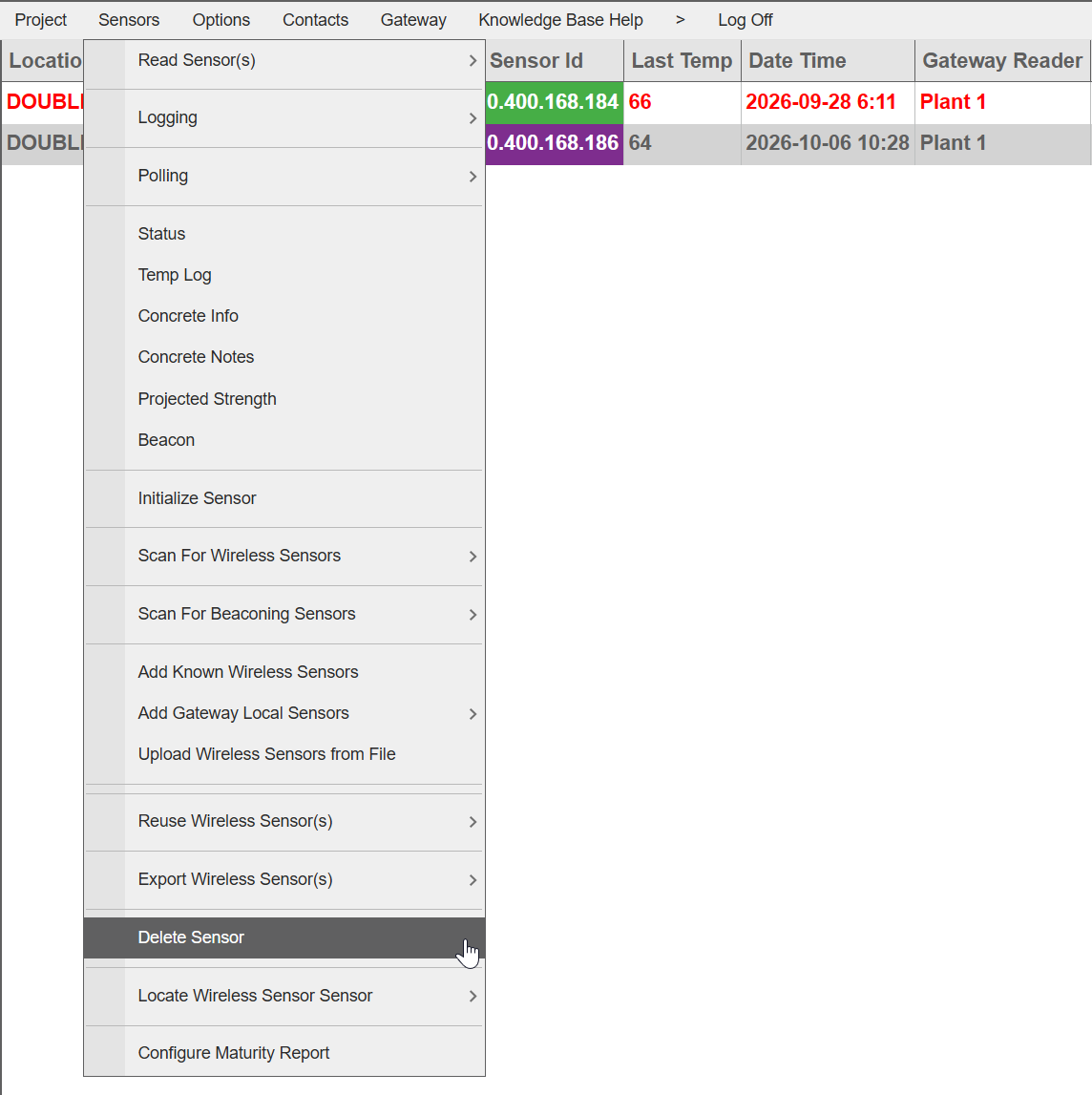

3) If the sensor you are adding has not been used in the past, it is likely still in flight mode. Flight mode is a low power mode the sensors are shipping in so that they do not interfere with anything during shipping and to save on battery power until you are ready to use the sensor. It is good practice to use Reuse Wireless Sensor(s) at anytime you are adding sensor to a new placement. Reuse Sensors will take the sensor out of flight mode and it will clear any existing data from the sensor, making communications more efficient between the Reader and the Sensor.
Single Click on the newly added sensor, then click on Reuse Wireless Sensor(s), Reuse Sensor
Caution: If you click on Reuse All Sensors, the HardTrack Gateway will clear all existing data from all of the sensors in the placement.HardTrack will read the sensor before clearing them and upload all the data to HardTrack before clearing them, so if you make a mistake and Reuse All Sensors, there will likely not be any lost data.
4) Consider advancing the Pour Date & Time forward for all of your sensors, so that viewing data on the HardTrack Dashboard and when you export the data to the Excel Reports will run more efficiently and only include information that you currently need.
5) If you need to stop a sensor, typically becuase it has run out of battery power, do one of the following:
- single click on the sensor, then click on Sensors, Logging, Stop Logging.
- or, double click on the sensor, then click on Stop Logging
If you have selected the correct sensor, click Yes:
Then click Yes, to force stop the sensor. 
This is important, because, if the Gateway cannot locate or communicate with a sensor that has lost its battery power, then we want the Gateway to stop attempting to read the sensor, which can cause unnecessary communication traffic in the Reader:
HardTrack will return after attempting to stop the sensor and indicate if the stop logging was successful.