HardTrack Mobile - Quick Start using Only the Handheld - Best Practices
Best Practices for setting up and monitoring concrete pours only using the handheld.
Rather than setting up your concrete placements using HardTrack on your PC, you can use the handheld device to perform all of the necessary setup and monitoring tasks.

The handheld should already be set to your local time and time zone. If you need to adjust these settings, click on the time on the bottom right of the handheld screen.
1) Start HardTrack on the Handheld:
Using the stylist, double-click on the HardTrack icon. If you have not already accepted the license agreement, please review it and accept it if you agree.
Note: HardTrack Mobile uses RFID Tags with Temperature sensors as its Loggers.
If you have not already set your default logging interval, please click on Options, Project Duration, and set your 28 Day Duration Logging Interval to 15, 30, or 60. Then Click OK
2) Click on Tag, Scan for Tags
HardTrack will scan the surrounding area for Wireless Loggers and display them within HardTrack.

Note: The radio in the handheld has been tuned for distance. With optimal conditions, you can read and write to the loggers at distances from 30 feet up to 300 feet. Being too close to the loggers can cause the handheld to not be able to communicate with the logger.
Once HardTrack has located all of the loggers in the area, a list will appear on the device.

Note: the default setting is for HardTrack to search the area for up to 100 loggers. If waiting for HardTrack to try and locate many loggers is not necessary, because you only have, for example, 1 or 2 loggers in the area, you can change the default setting to a minimum of 25 for performance reasons. Please do not set the number of sensors lower than 25.
Click on Options, General Options, and change the Tag Range. If you see that the Tag Override is not checked on this screen, check it. Please leave all other settings alone, and then click OK.
3) Delete any Tags you do not want in the placement/pour. Single-click the Tag, then click Tag, Delete Tag. To remove it.
4) Save your placement/pour by clicking on Project, Save
Enter the name you would like to give your placement/pour.
Note: You can use the pop-up keyboard or the buttons on the handheld. To move the keyboard out of the way, so you can see what you are typing using the handheld's buttons, click on the image of the keyboard in the lower right
When you are ready, click on OK to save
5) Best practices are to always Reuse the Tags when starting a new placement. Click on Tag, Reuse, Reuse All
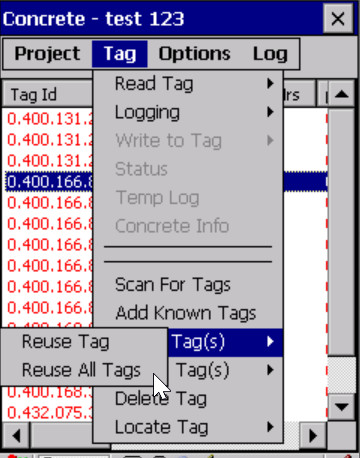
This will clear any old temperature logs off the logger and ask you if you would like to Start Logging. If you are not ready to Start logging, click No to this question.
It is okay to Start logging early, even the day before your concrete pour, so that you can see that the equipment is working correctly.
6) If you have not already Started Logging temperatures, click on Tag, Logging, Restart All
7) To Read the Temperature from the Loggers at any time, click on Tag, Read Tag, Read All Tags
8) You can view the Temperature Readings by double-clicking on a Tag, then clicking on the Temp.Log tab at the top

If you would like to provide a visual verification of your readings to someone, click on 'Project', then 'Open', and select the project name you saved earlier. Please follow these steps:
1) Tap the sensor you would like to select
2) Click on Tag, Temp Log
3) You can drag the sidebar up and down to see more data
4) You can page backward and forward to see more data
5) To view the temperatures graphically, click on Graph
You can import your readings to HardTrack Desktop and generate very nice Excel Workbooks from the data. Please refer to How to Upload a Project from the Handheld and Generate a Report - Best Practices
If the handheld ever becomes unresponsive, perform a Cold Reboot following the instructions on How to Reset the Handheld
Related Articles
HardTrack Mobile User Manual
HardTrack Mobile User Manual Revision 5.1 April 21, 2021 For further information or assistance, call WAKE's Customer Service Hotline Toll-Free at US (800) 957-5606 or CA: (647) 931-6995 Wake, Inc. reserves the right to alter any of its products or ...HTC Gateway - How to set up a new Concrete Pour - Best Practices
Starting with version 5.1._02.33 of HardTrack Desktop, this is the best procedure to follow to set up a new HardTrack Project and Start the Sensors/Tags Logging. On your PC using HardTrack Desktop, start by adding Known Sensors to your new HardTrack ...How to update HardTrack Mobile on a Handheld Device to a new version using HardTrack Desktop
How to update HardTrack Mobile on a Handheld Device to a new version 1) Update your HardTrack Desktop application 2) Place your Mobile Device in the Docking Station and attach the USB cable so that the Mobile Device can communicate with your PC which ...How to get Device Mirror working between HardTrack Desktop and HardTrack Mobile running on a Handheld Computer
After following the instructions in the HardTrack users manual, you cannot get Device Mirror to run correctly on your PC, this article may assist you in resolving the issue. Device Mirror will need to be initially installed. This is usually taken ...How to Reset the Handheld Device
To perform a warm reset: • Press the FN/BLUE key and the ENTER key simultaneously for a few seconds. During a warm reset, running programs are halted. The contents of RAM, flash memory and the registry are preserved To perform a cold reset: If the ...