How to Authorize Users with Access to HardTrack - Best Practices
1) The User who would like access to HardTrack Desktop Web requests access to HardTrack by going to the HardTrack Desktop website, and they request access:
The user completes the request form and clicks on Request Registration:All Super Admin users of HardTrack will receive an email message from HardTrack with instructions to log on to HardTrack Desktop Web and provide authorization via Contacts.
2) A Super Admin user logs on to HardTrack Desktop, clicks on Contacts, and selects the requesting user from the drop-down selection box:
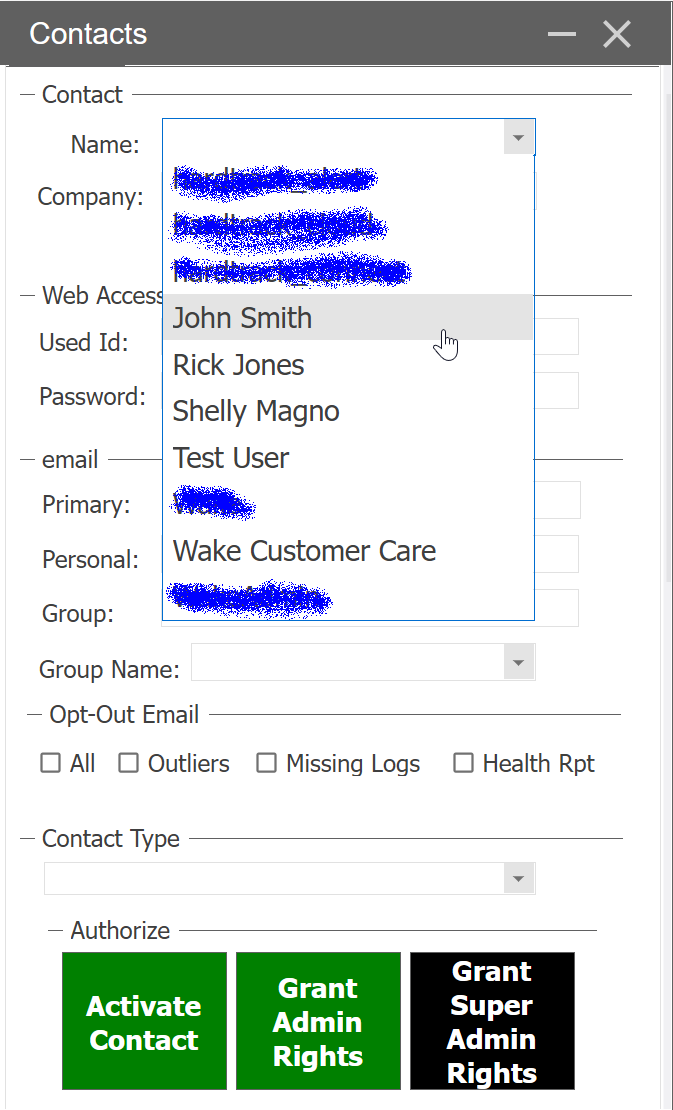 If you are not able to see all of the fields in Contacts on your PC, try changing the zoom in your browser by pressing:Shift-ctrl - (minus) to 90%Shift-ctrl + (plus) will increaseOther Options:- Increase the form size by dragging the bottom of it down.- Scroll-down within the formThere are 3 levels of access, which may be granted.Level 1) Activate Contact - the user will be authorized to view only access on the HardTrack Dashboard, with no access to HardTrack Desktop Web.Level 2) Admin User (Typically granted to a user who will start and stop temperature logging for placements. Admin users will have access to the HardTrack Desktop):Level 3) Super Admin user (Typically granted to a user who will authorize access to other users and potentially change HardTrack configuration settings affecting how HardTrack processes placements to meet project Specifications and Thermal Control Plan specifications) :


3) The Super Admin User Grants - Admin to User or Super Admin User access by clicking on the large buttons that appear in the Contact.
Note: For View-only access, Activate User. For no access, scroll to the bottom of the form and delete the Contact.:
Scroll down to the Grant buttons and click on Activate Contact (View-Only Access to Dashboard), Grant Admin Rights, or Grant Super Admin RightsYou will receive a message asking if you wish to grant access:After clicking on Yes, the Contact will be updated with access, and the user will receive an email message indicating that they can now log on to HardTrack Desktop Web. The Contact will display the access rights near the top of the Contact:The buttons will change to 'Remove' if a Contact already has access. You can remove their access by clicking on Remove:If you click Grant Super Admin Rights, you will be prompted to confirm again. If you authorize a Super Admin, all 3 security levels will be authorized at once.If you authorized both Admin and Super Admin rights, you will see both near the top of the Contact:You can also delete the Contact to remove all access by scrolling to the very bottom and clicking the Delete button:
4) If the user should receive alerts from HardTrack regarding actively logging placement(s), be sure to set the Group Name.
This is the same Group Name selected in the Concrete Type that HardTrack uses to determine whom to notify if a specification is approaching out-of-specification.HardTrack will send a daily health report notification with a link to the HardTrack Dashboard and a direct link to the placement's summary information.
Related Articles
HTC Gateway - How to set up a new Concrete Pour - Best Practices
Starting with version 5.1._02.33 of HardTrack Desktop, this is the best procedure to follow to set up a new HardTrack Project and Start the Sensors/Tags Logging. On your PC using HardTrack Desktop, start by adding Known Sensors to your new HardTrack ...HardTrack Mobile User Manual
HardTrack Mobile User Manual Revision 5.1 April 21, 2021 For further information or assistance, call WAKE's Customer Service Hotline Toll-Free at US (800) 957-5606 or CA: (647) 931-6995 Wake, Inc. reserves the right to alter any of its products or ...How to Install HardTrack Desktop on a new PC for use with HardTrack Cloud Devices
Please note: Most HardTrack Desktop users currently access HardTrack Desktop from the Web rather than installing the app on their PC. These instructions are only for users who install the HardTrack Desktop app on their PC. To install or upgrade ...HardTrack Mobile/Desktop on Windows Tablet - Best Practices
Equipment Overview Wireless Reader - Remove the reader from the small Pelican case and charge it as soon as possible. Note: The reader will slowly charge while in use when it is attached to the Rugged Tablet's USB port Use the supplied USB cable and ...HardTrack Mobile - Quick Start using Only the Handheld - Best Practices
Best Practices for setting up and monitoring concrete pours only using the handheld. Rather than setting up your concrete placements using HardTrack on your PC, you can use the handheld device to perform all of the necessary setup and monitoring ...